How to monitor an email server in GuardYak
When a mail server stops answering, messages queue up or bounce and nobody notices until a customer complains. An SMTP check connects to the server on its mail port and confirms it greets you like a working mail server should.
Before you start
- A GuardYak account (every check type is available on the free plan)
Plays silently with captions; the narrated version is on its way.
Transcript
Hear about a dead mail server before your customers' email starts bouncing. Here's how to monitor an email server in GuardYak.
Start a new check and choose SMTP.
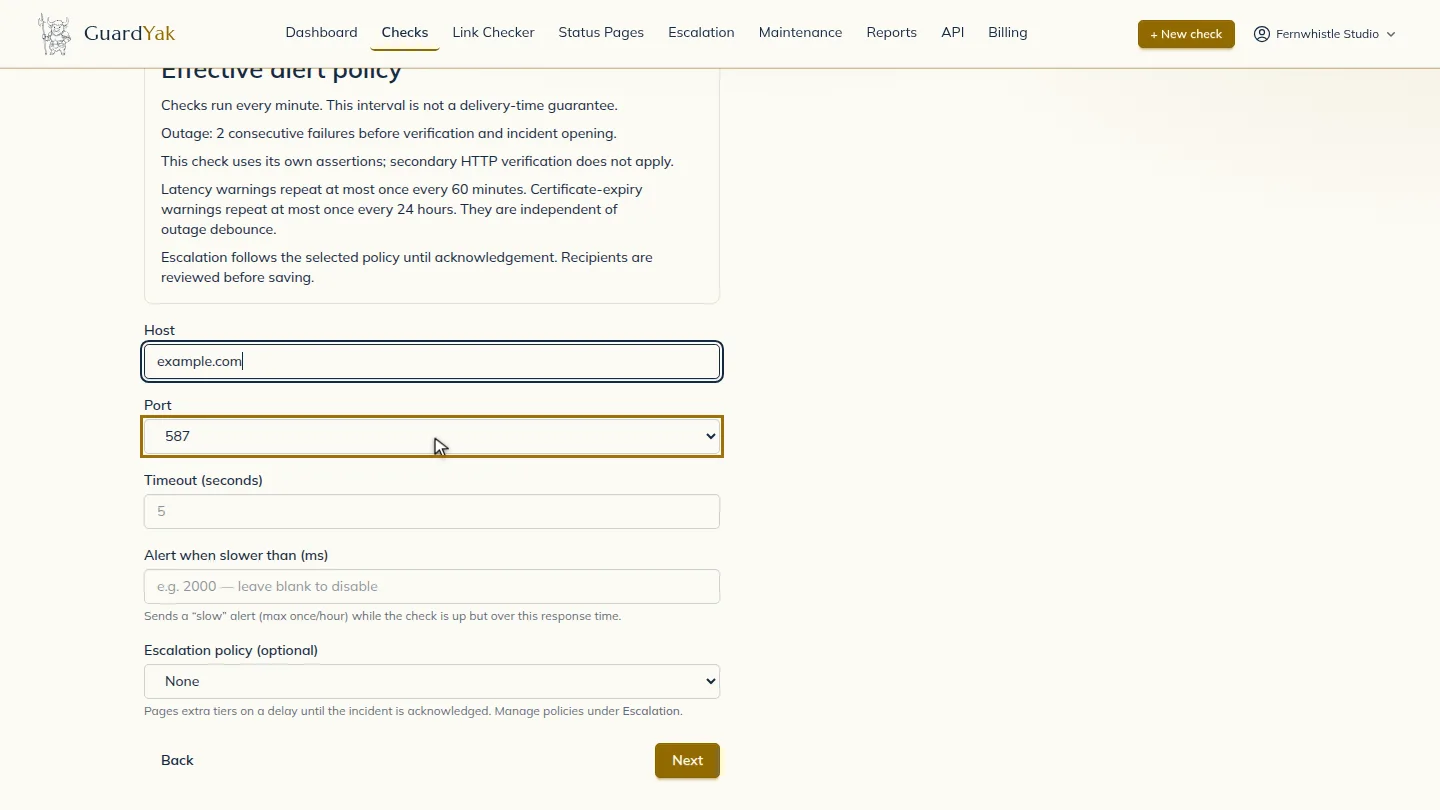
Name the check and enter the mail server's host name. Choose the port. Five eight seven is the usual one for sending mail.
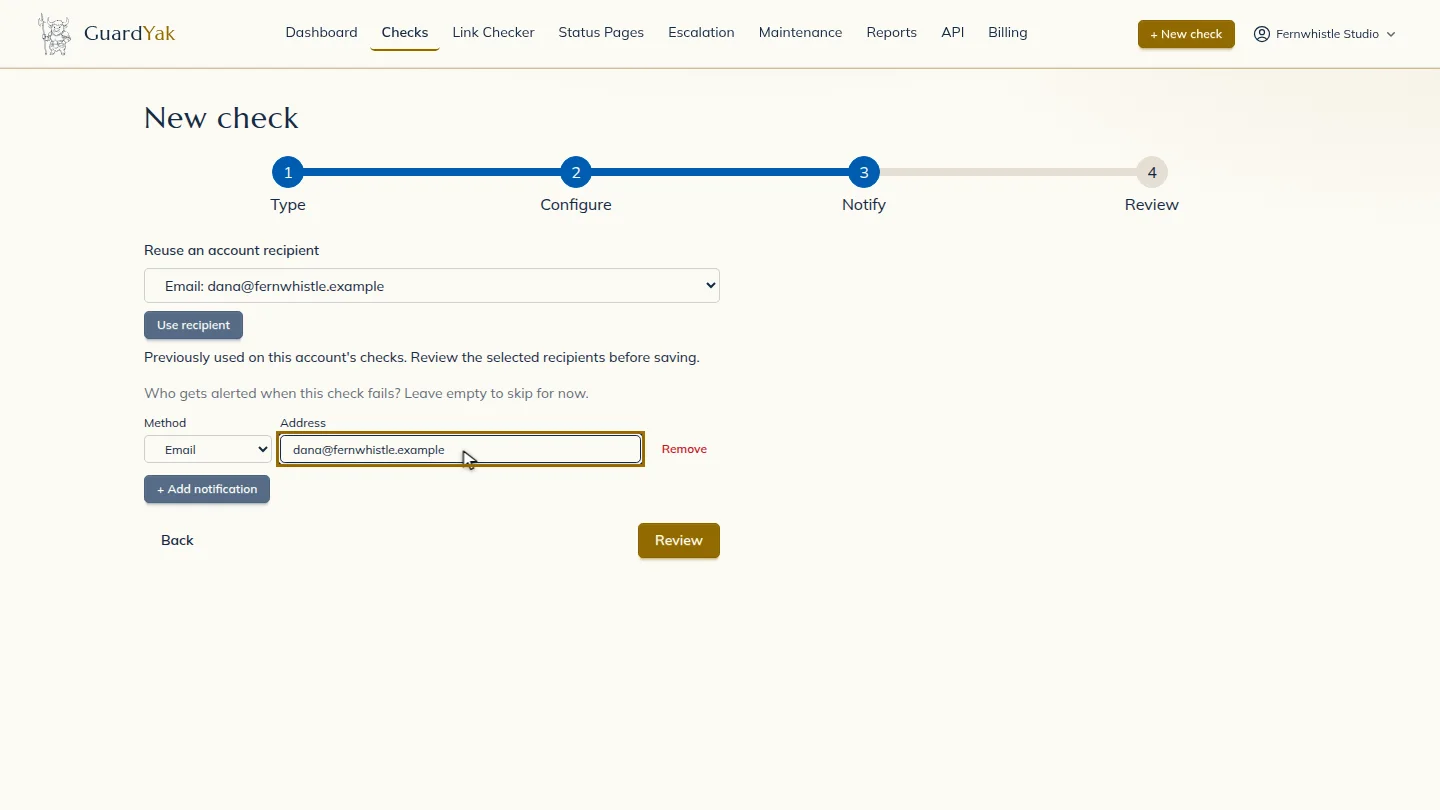
Select Next, then add the email address that should hear about problems.
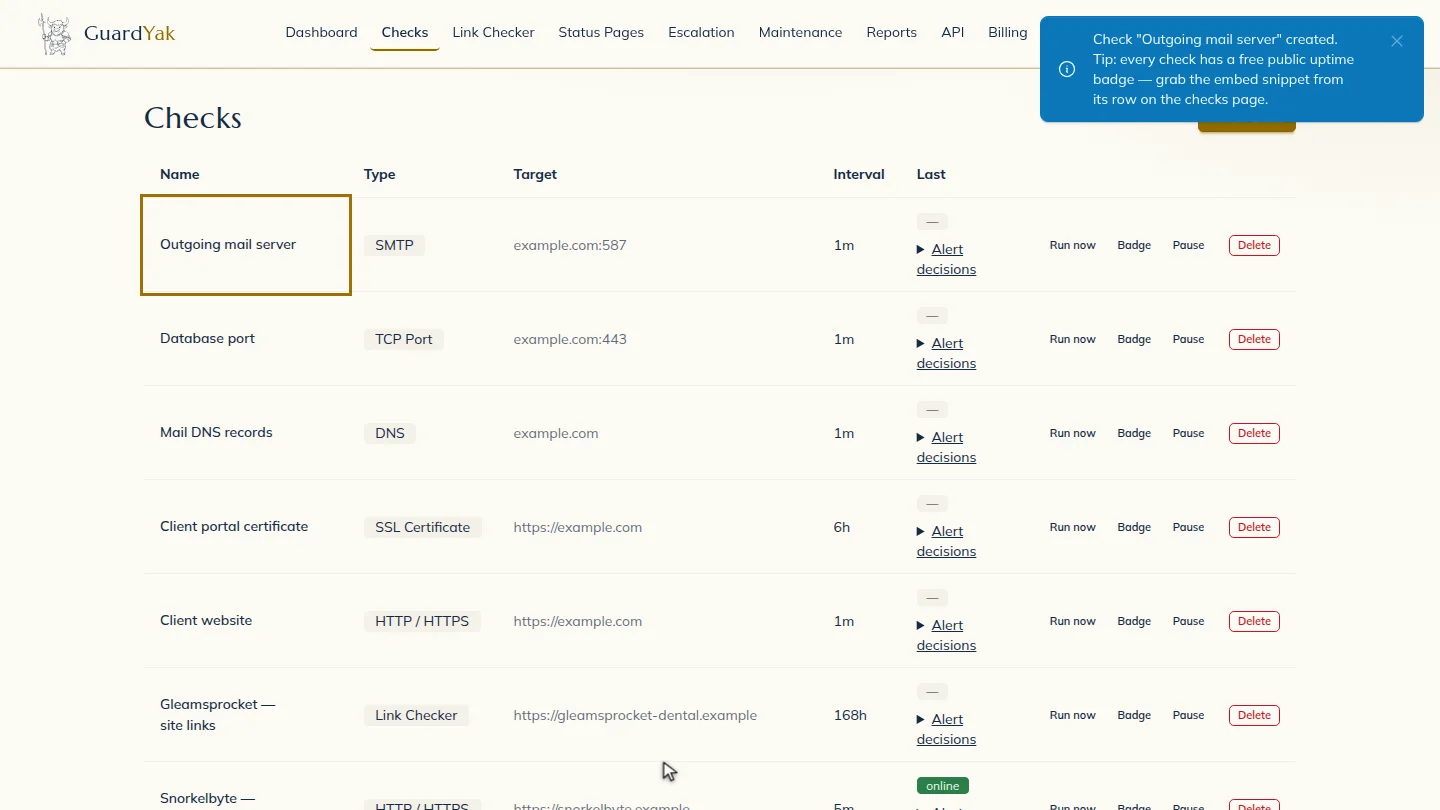
Select Review, check the summary, and create it. The new check joins your list, and GuardYak starts checking on its next run.
Steps
Choose the check type ▶ 0:10
In Checks, select + New check, then select SMTP.
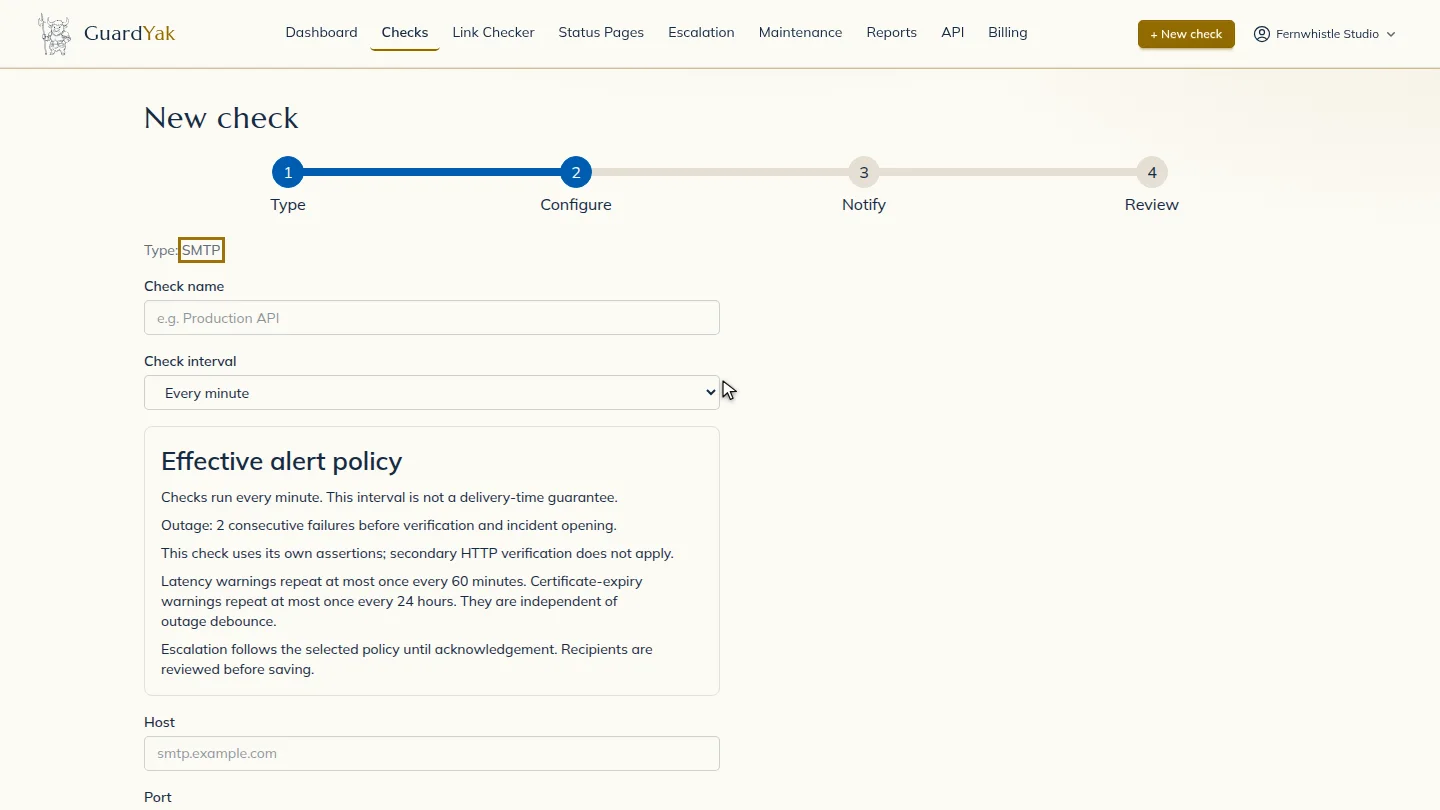
Fill in the details ▶ 0:13
Enter a Check name and the mail server's Host, then choose the Port: 25, 465 or 587.
Choose who gets alerts ▶ 0:22
Select Next. Under Address, enter the email that should receive alerts.
Create the check ▶ 0:28
Select Review, check the summary, then select Create check. The new check appears on Checks.
Next steps
Updated 2026-11-03
smtp monitoring email server down mail server uptime port 587 check