How to monitor a TCP port in GuardYak
Not everything you run answers on a web page. A TCP port check opens a connection to a host and port, such as a database, game server or VPN, and alerts you when it stops accepting connections.
Before you start
- A GuardYak account (every check type is available on the free plan)
Plays silently with captions; the narrated version is on its way.
Transcript
Know when a service stops accepting connections, even if it has no web page. Here's how to monitor a TCP port in GuardYak.
Start a new check and choose TCP Port.
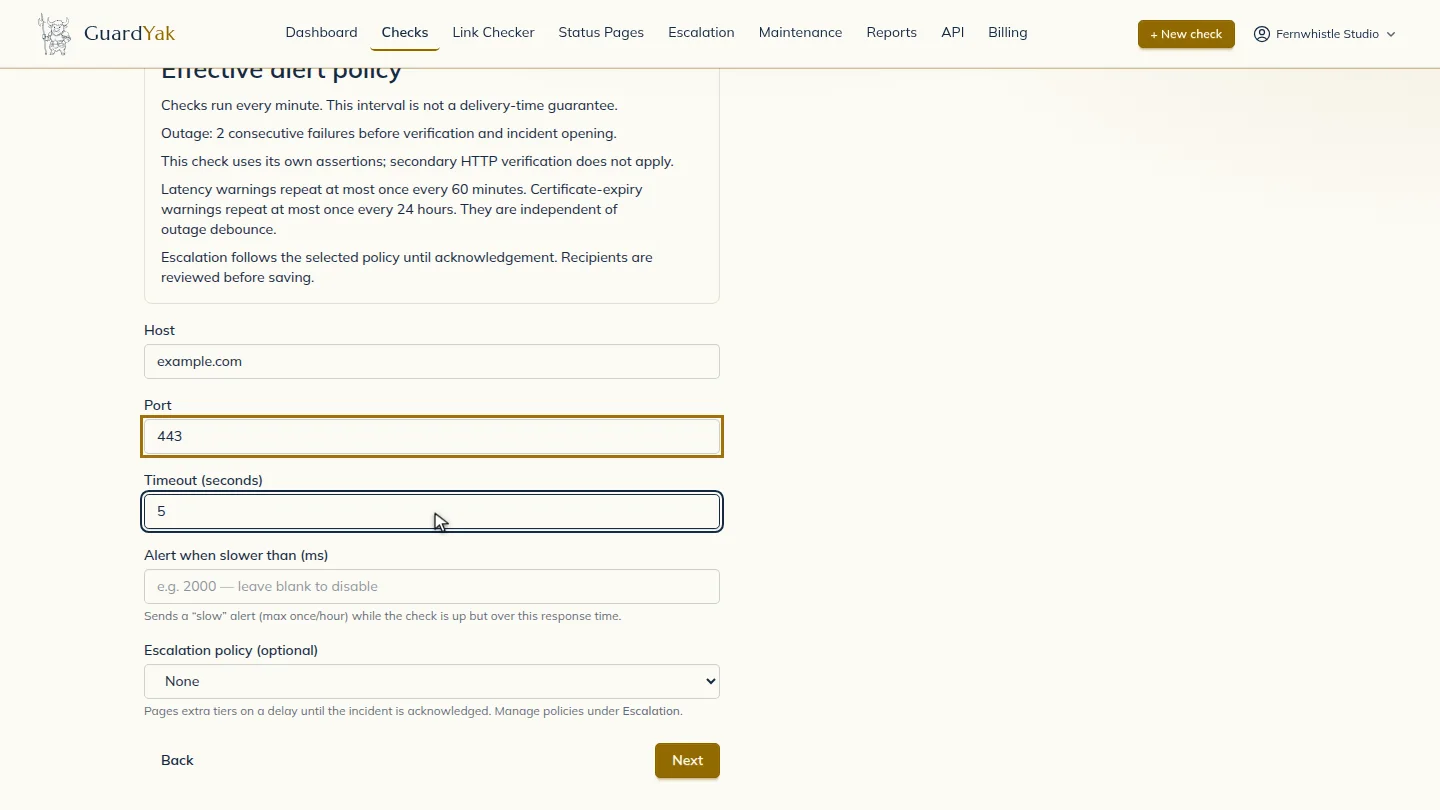
Name the check, then enter the host and the port number. If the connection takes longer than the timeout, the check counts as failed.
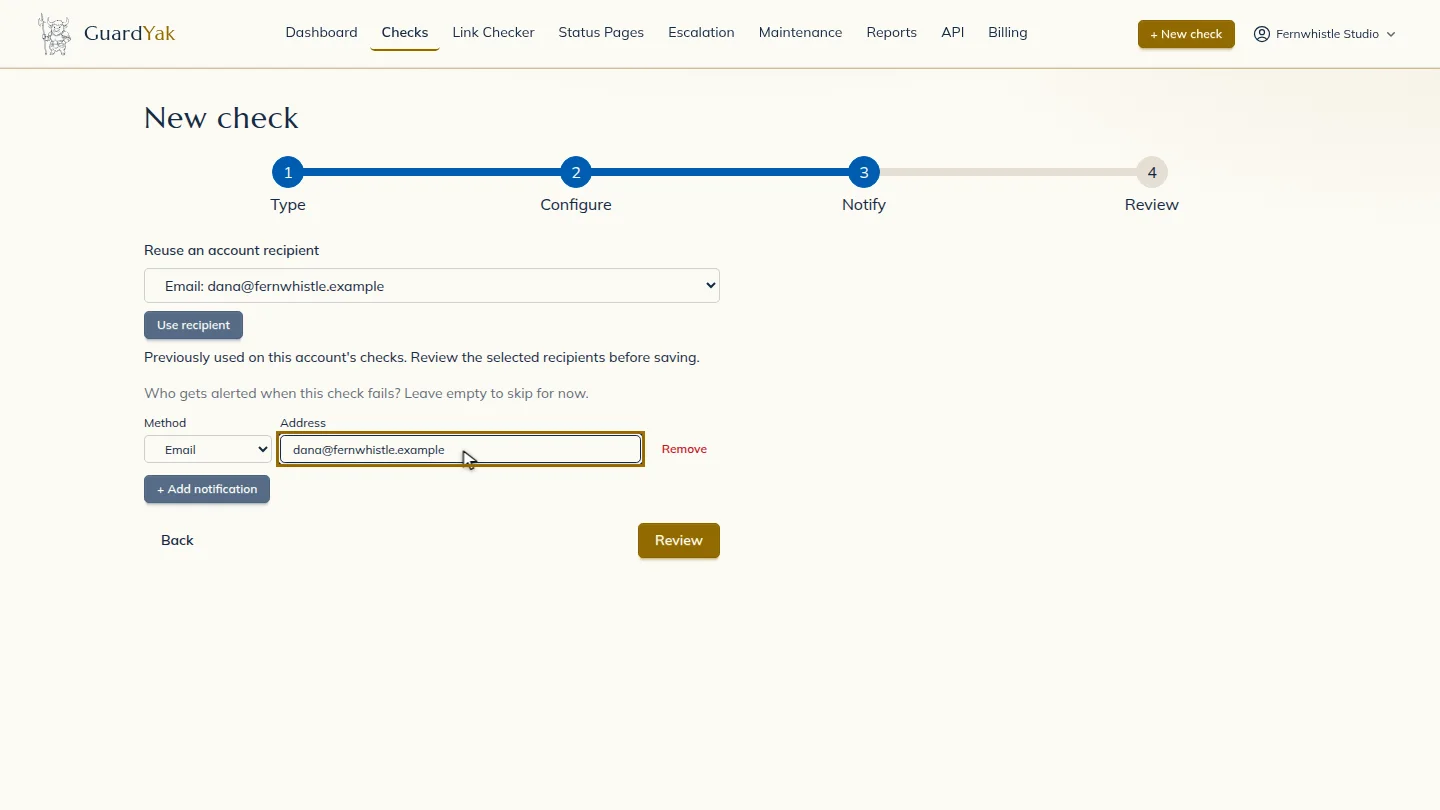
Select Next, then add the email address that should hear about problems.
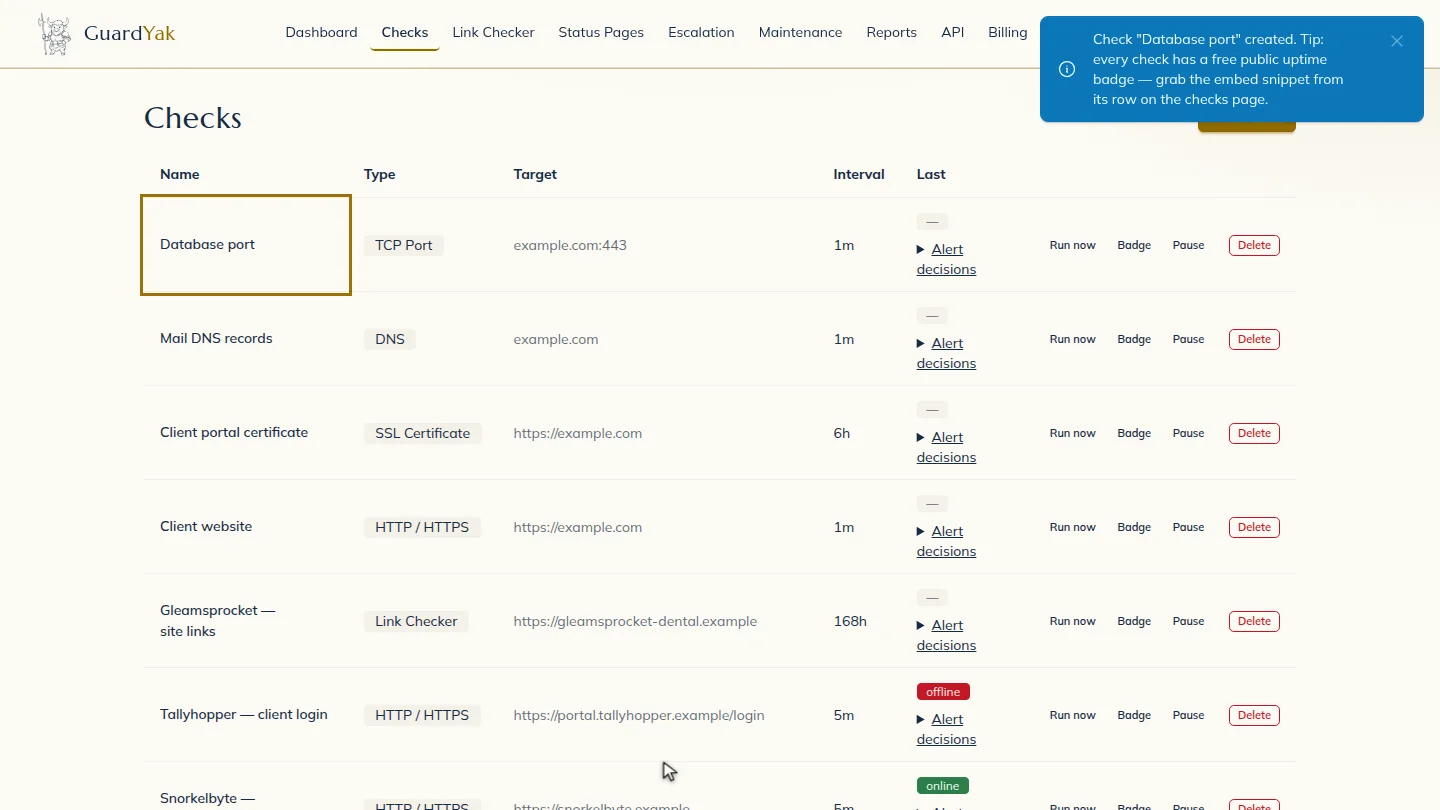
Select Review, check the summary, and create it. The new check joins your list, and GuardYak starts checking on its next run.
Steps
Choose the check type ▶ 0:10
In Checks, select + New check, then select TCP Port.
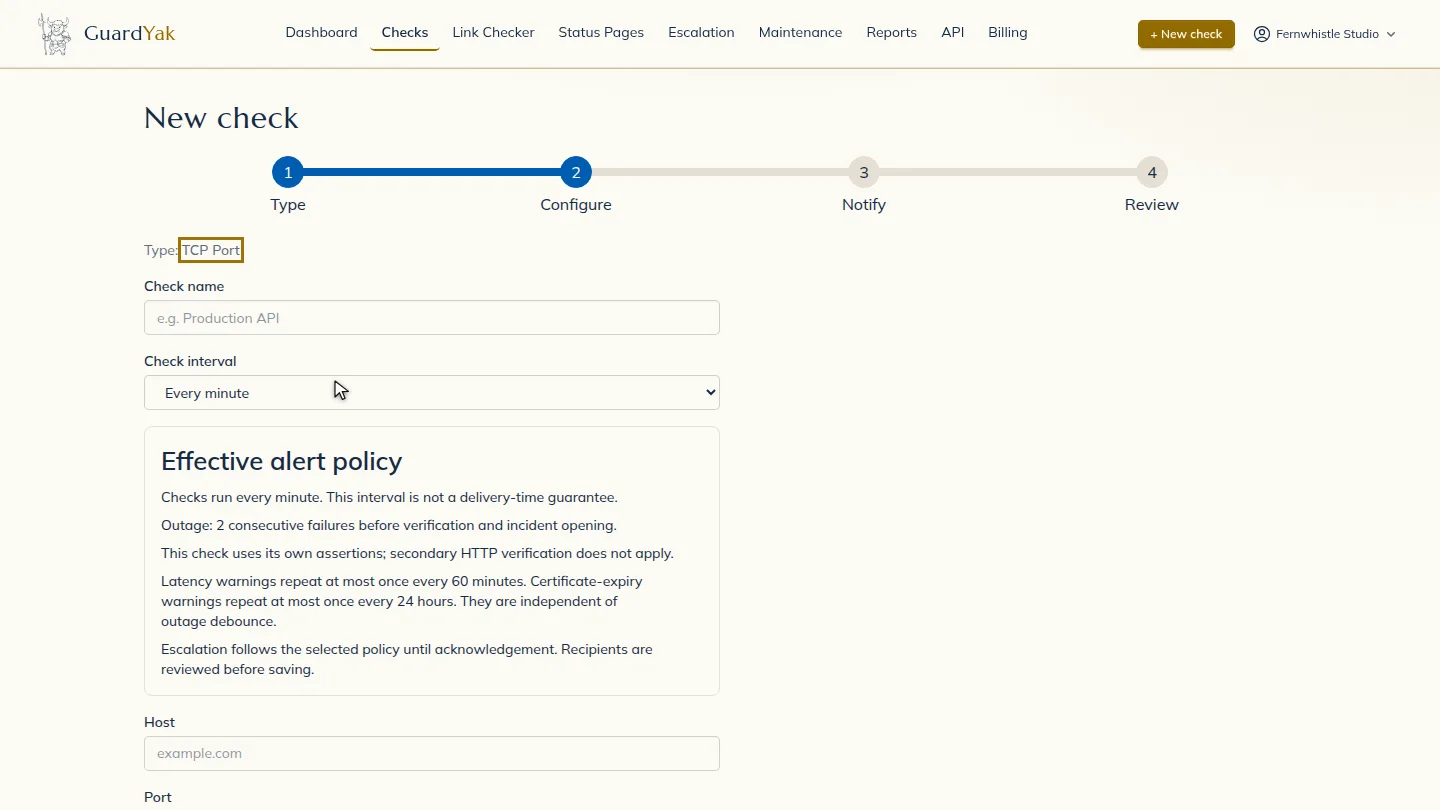
Fill in the details ▶ 0:13
Enter a Check name, the Host and the Port. Set Timeout (seconds) if the service is slow to accept connections.
Choose who gets alerts ▶ 0:23
Select Next. Under Address, enter the email that should receive alerts.
Create the check ▶ 0:28
Select Review, check the summary, then select Create check. The new check appears on Checks.
Next steps
Updated 2026-11-03
port monitoring tcp port check is my port open service uptime monitor