How to schedule a maintenance window in GuardYak
Planned work shouldn't page anyone. A maintenance window silences alerts for the checks you choose between a start and end time, then monitoring carries on as normal.
Before you start
- At least one check
Plays silently with captions; the narrated version is on its way.
Transcript
Silence alerts during planned work, then let monitoring resume by itself.
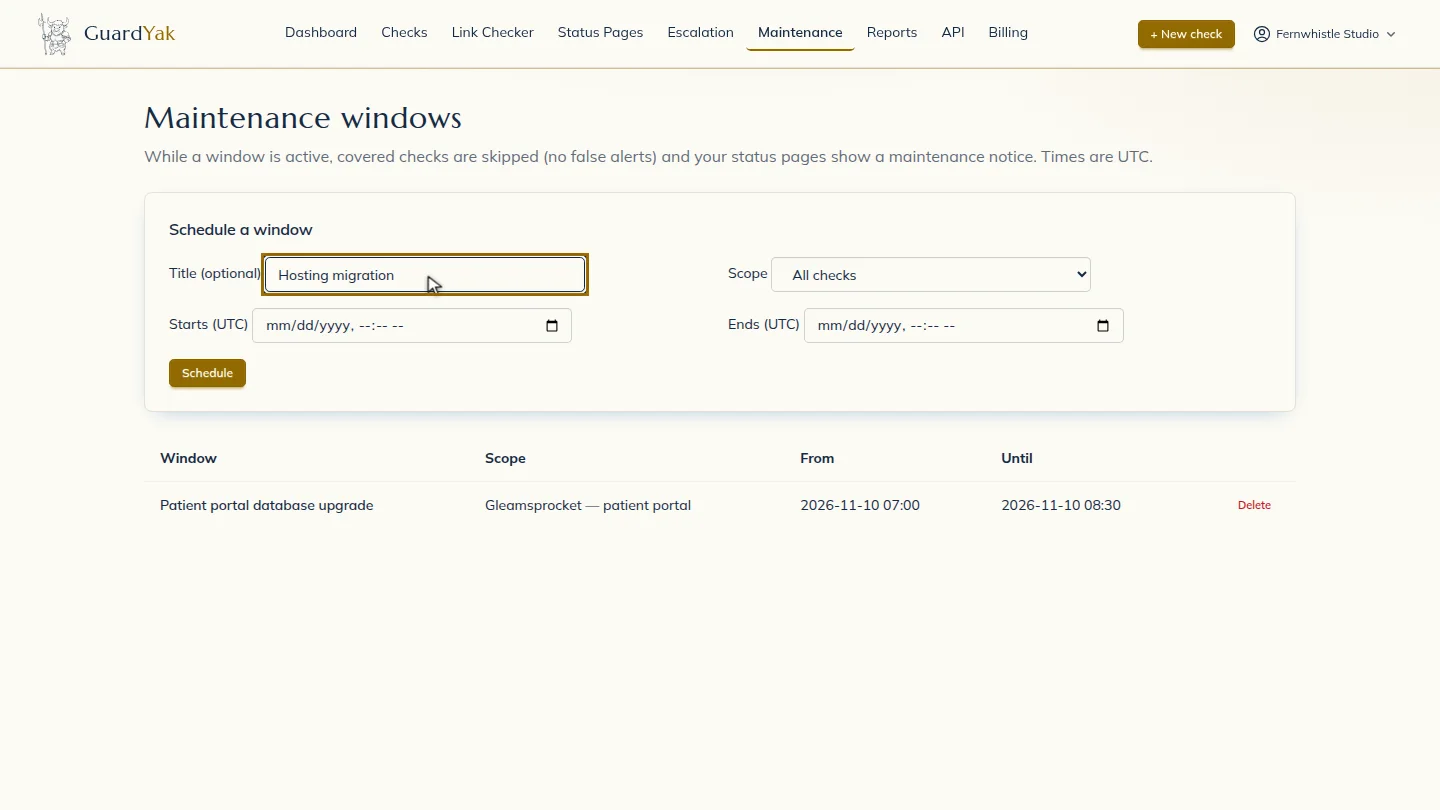
Under Schedule a window, add a title so the team knows what the work is.
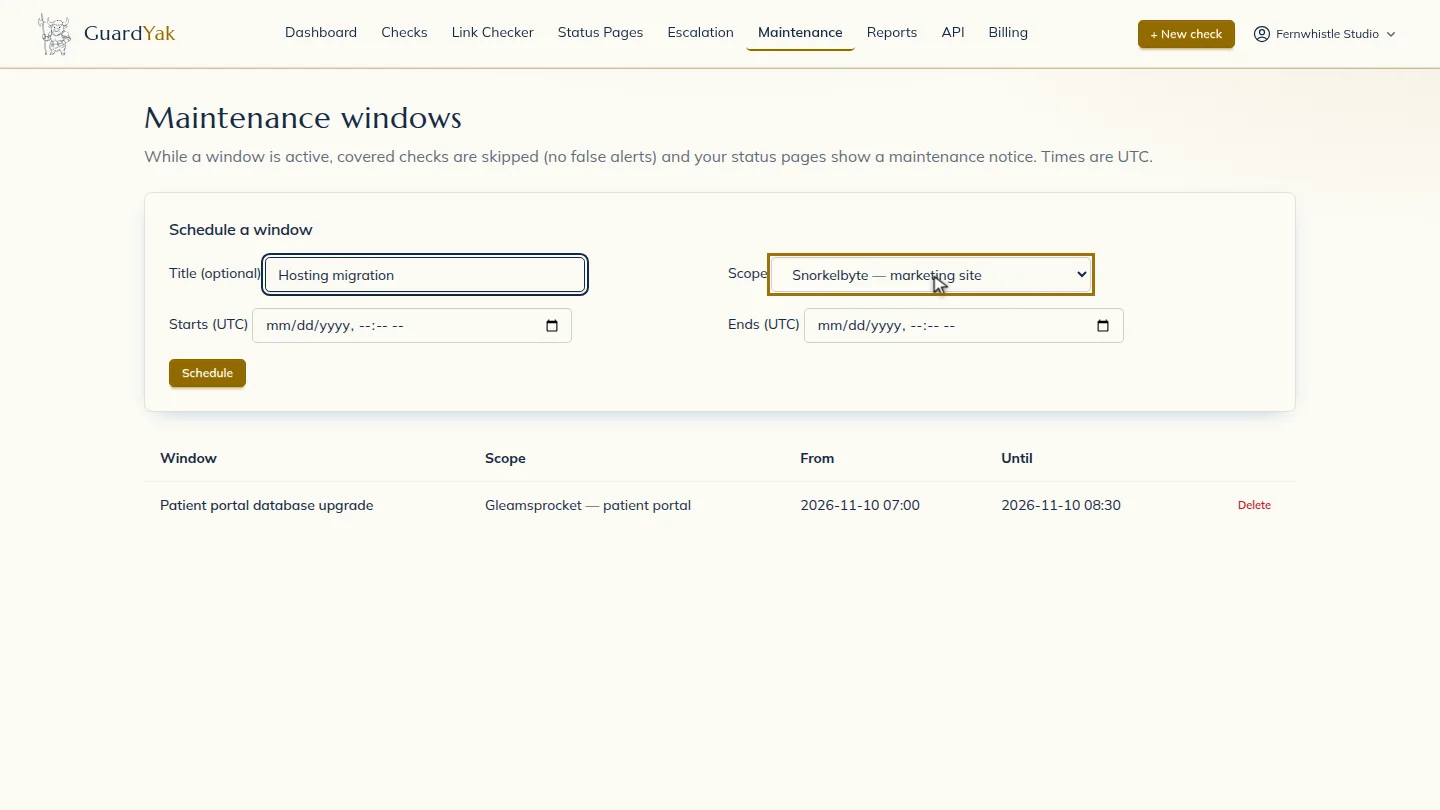
Choose the scope. All checks covers everything, or pick a single check.
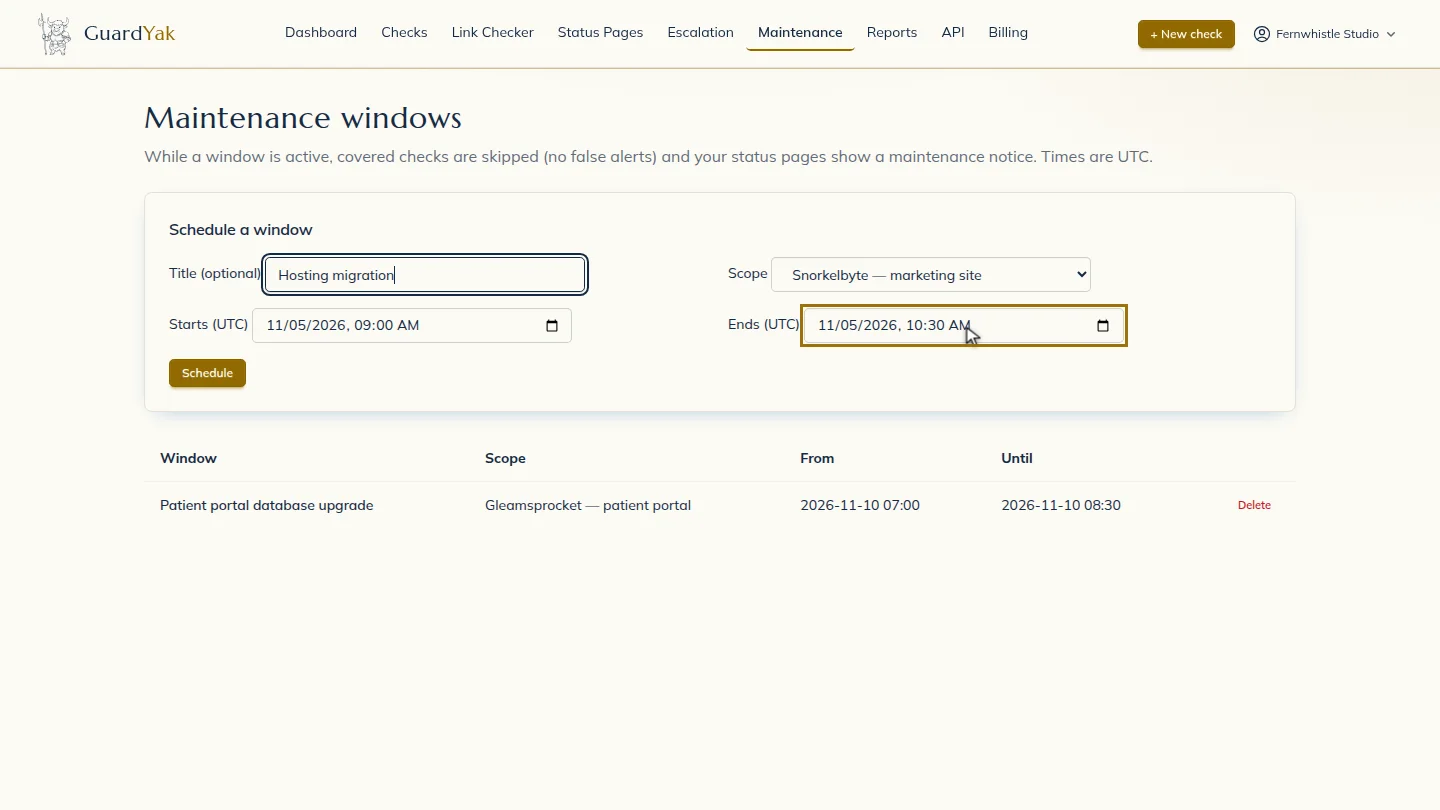
Set when it starts and ends. Times are in UTC, so convert from your local time first.
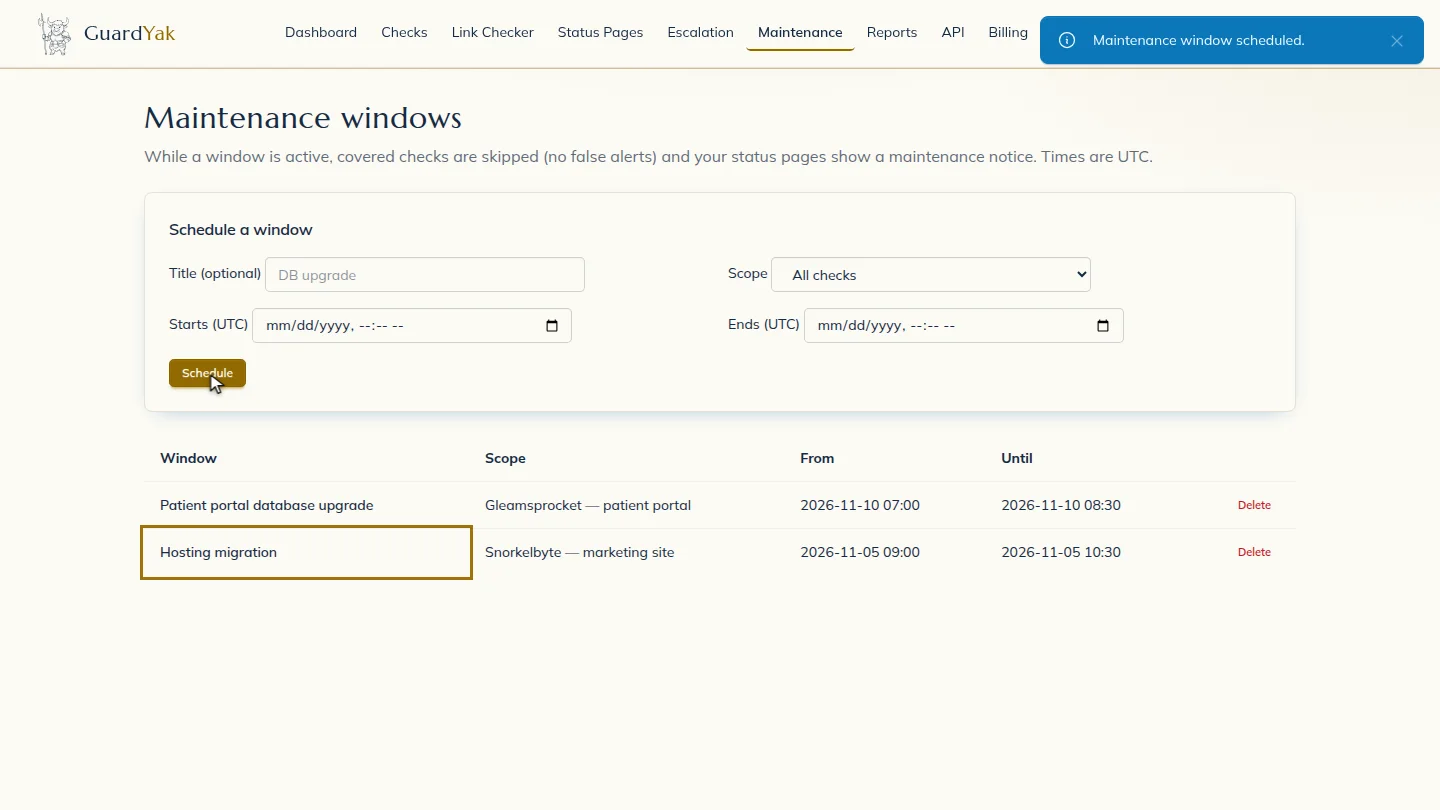
Select Schedule. The window appears in the list. During that period the checks keep running, but nobody is alerted, and monitoring returns to normal when the window ends.
Steps
Describe the work ▶ 0:06
Under Schedule a window, enter a Title (optional).
Choose what it covers ▶ 0:12
For Scope, keep All checks or choose one check.
Set the start and end ▶ 0:17
Set Starts (UTC) and Ends (UTC).
Schedule it ▶ 0:24
Select Schedule. The window appears with its Scope, From and Until.
Next steps
Updated 2026-10-26
planned downtime silence alerts maintenance mode