How to rename your workspace in GuardYak
Your workspace name appears in alerts and invites. Make it your company name so clients and teammates recognise it.
Before you start
- Owner or admin role
Plays silently with captions; the narrated version is on its way.
Transcript
Make alerts and invites show your company's name.
In account settings, replace the name with your company's.
Save it. A confirmation appears.
Steps
Enter the new name ▶ 0:04
In Settings, under Workspace identity, enter the new Name.
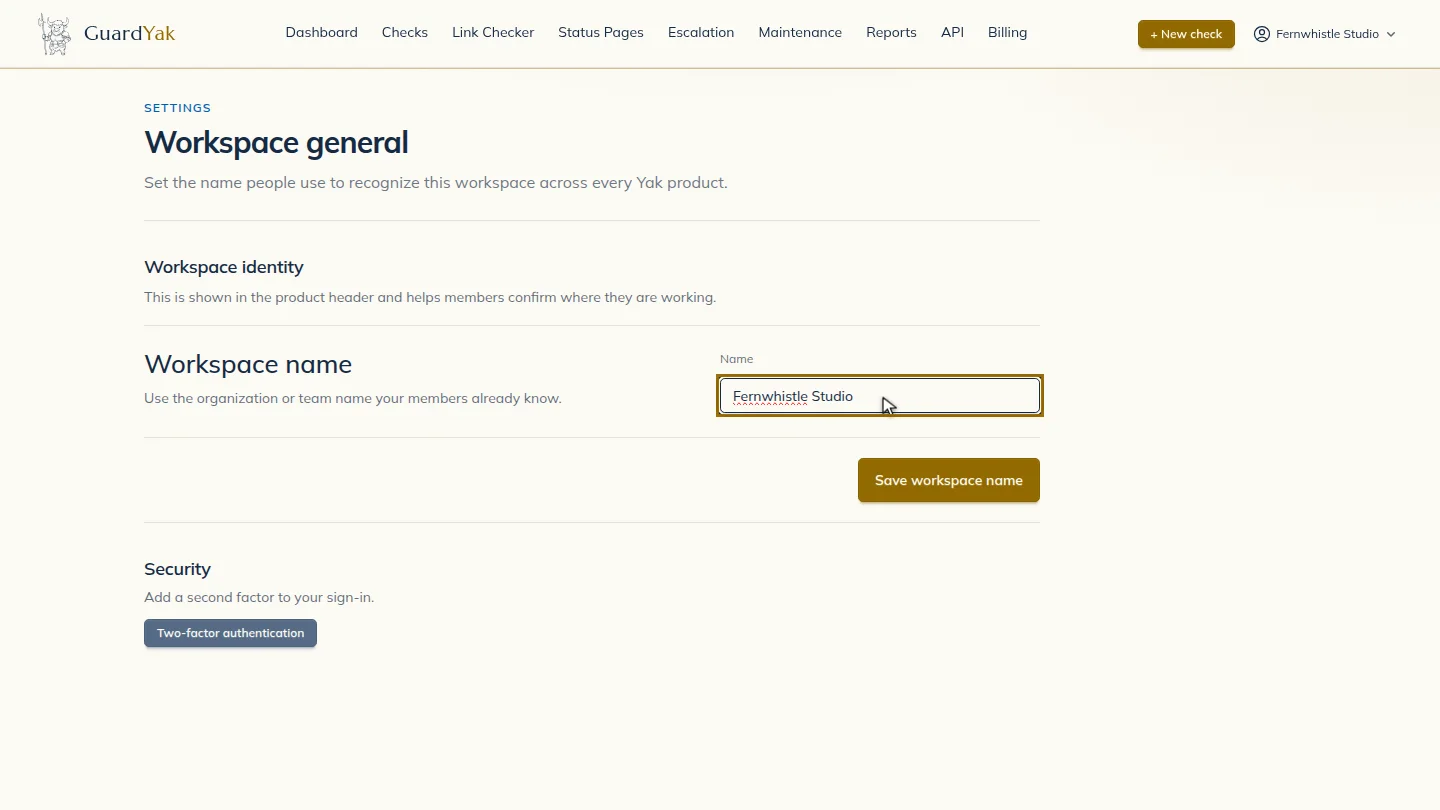
Save ▶ 0:09
Select Save workspace name. Workspace name saved. appears.
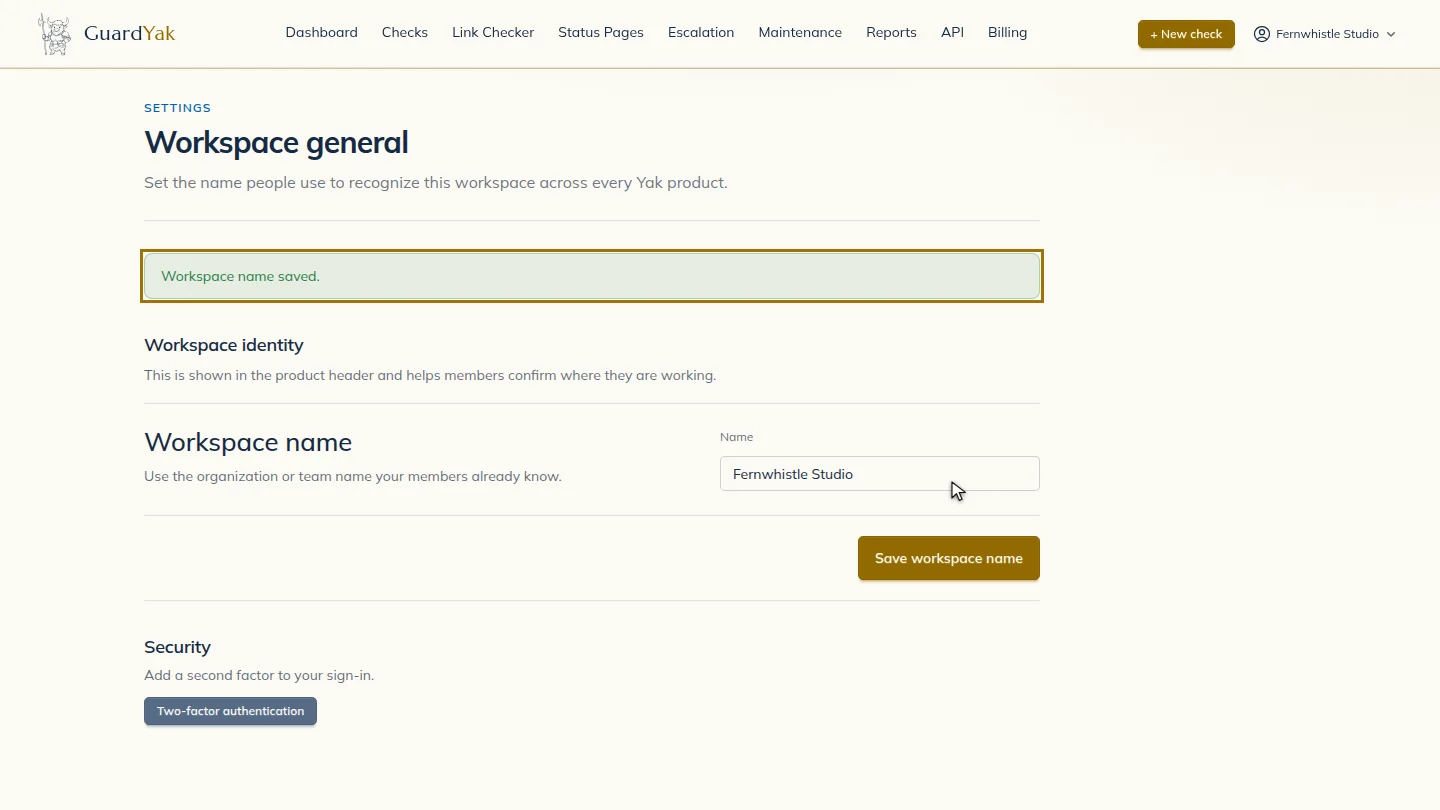
ResultThe new name appears across GuardYak and in new alerts.
Next steps
Updated 2026-10-26
company name account name workspace settings