How to turn on email sign-in codes in GuardYak
A monitoring account can silence alerts, so protect it with a second step at sign-in. With email codes on, GuardYak emails a one-time code each time you sign in.
Before you start
- Access to the email address on your account
- A recent sign-in — GuardYak asks you to sign in again before changing security settings
Plays silently with captions; the narrated version is on its way.
Transcript
Add a second sign-in step using codes sent to your email.
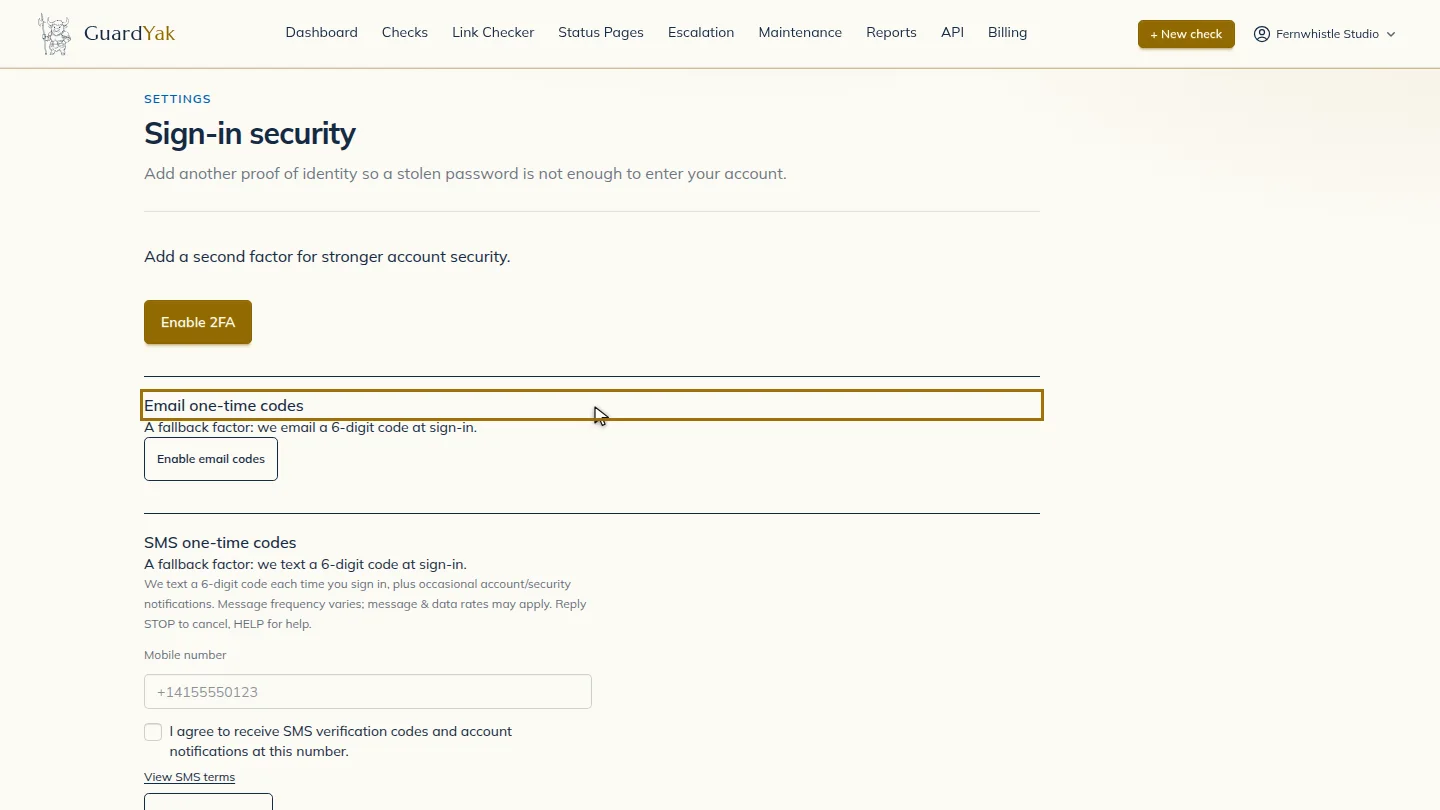
Open sign-in security and find Email one-time codes.
Select Enable email codes. GuardYak signs you out, and from now on every sign-in asks for a code from your inbox.
Steps
Open sign-in security ▶ 0:05
Go to Settings, then Sign-in security, and find Email one-time codes.
Turn it on and sign in again ▶ 0:09
Select Enable email codes. GuardYak signs you out; sign in again and enter the code it emails you.
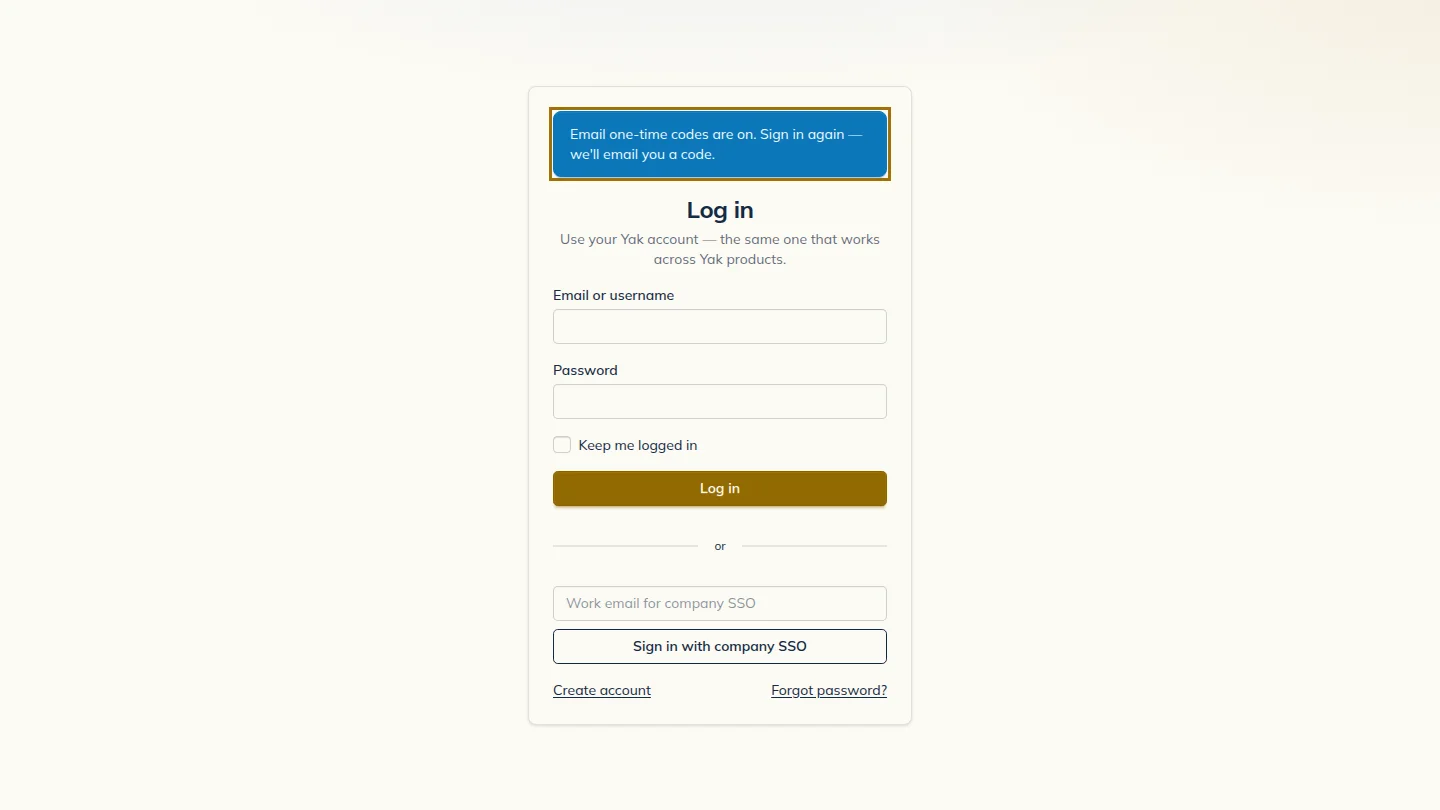
ResultGuardYak signs you out so you can sign in again with your first emailed code.
Next steps
Updated 2026-10-26
two-factor 2fa mfa one-time code