How to create an escalation policy in GuardYak
If the first person doesn't respond, the alert should go to someone else. An escalation policy lists who to notify and how many minutes to wait before moving to the next person.
Before you start
- A Pro or Business plan
Plays silently with captions; the narrated version is on its way.
Transcript
Make sure someone always responds: notify the first person, then escalate if nobody acts.
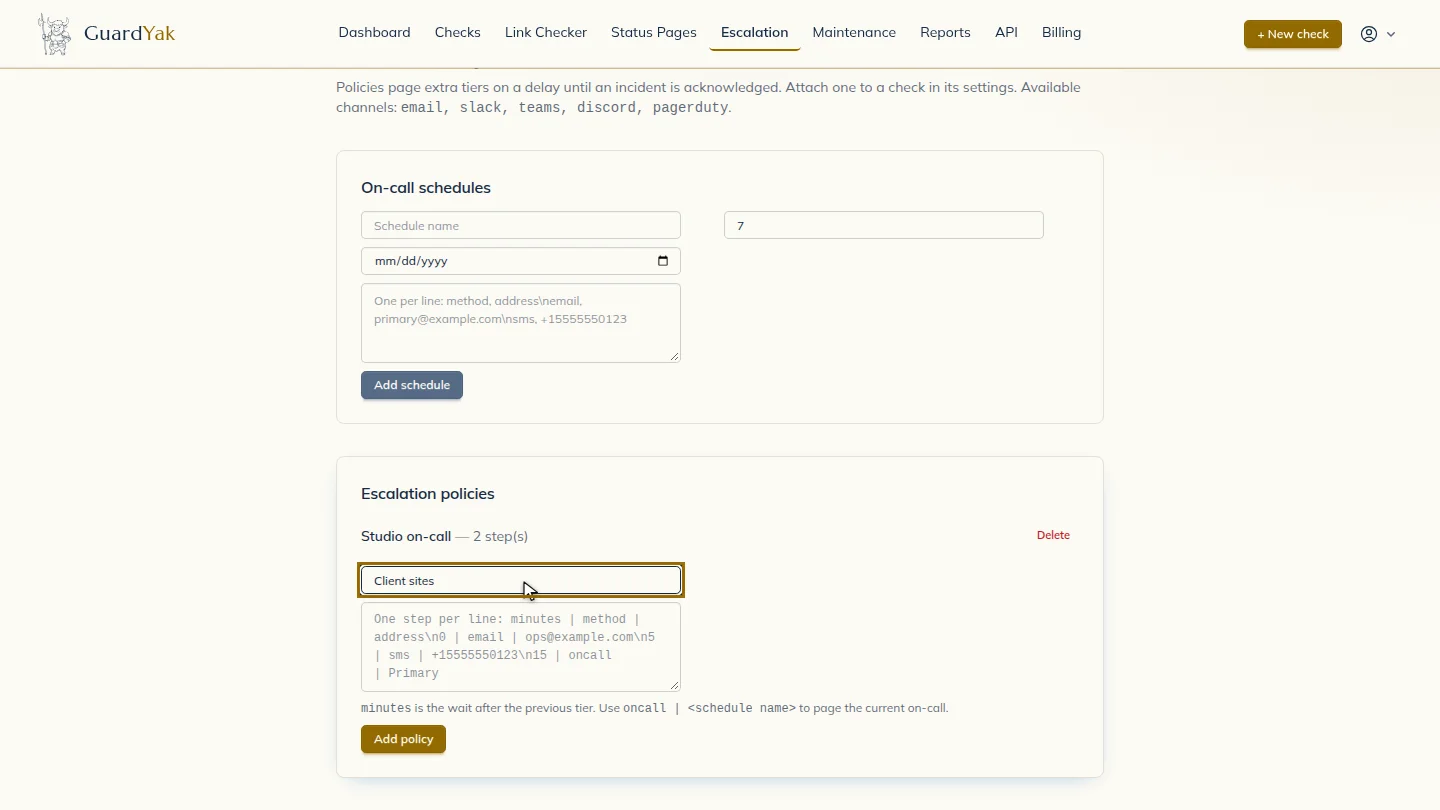
Under Escalation policies, give the policy a name.
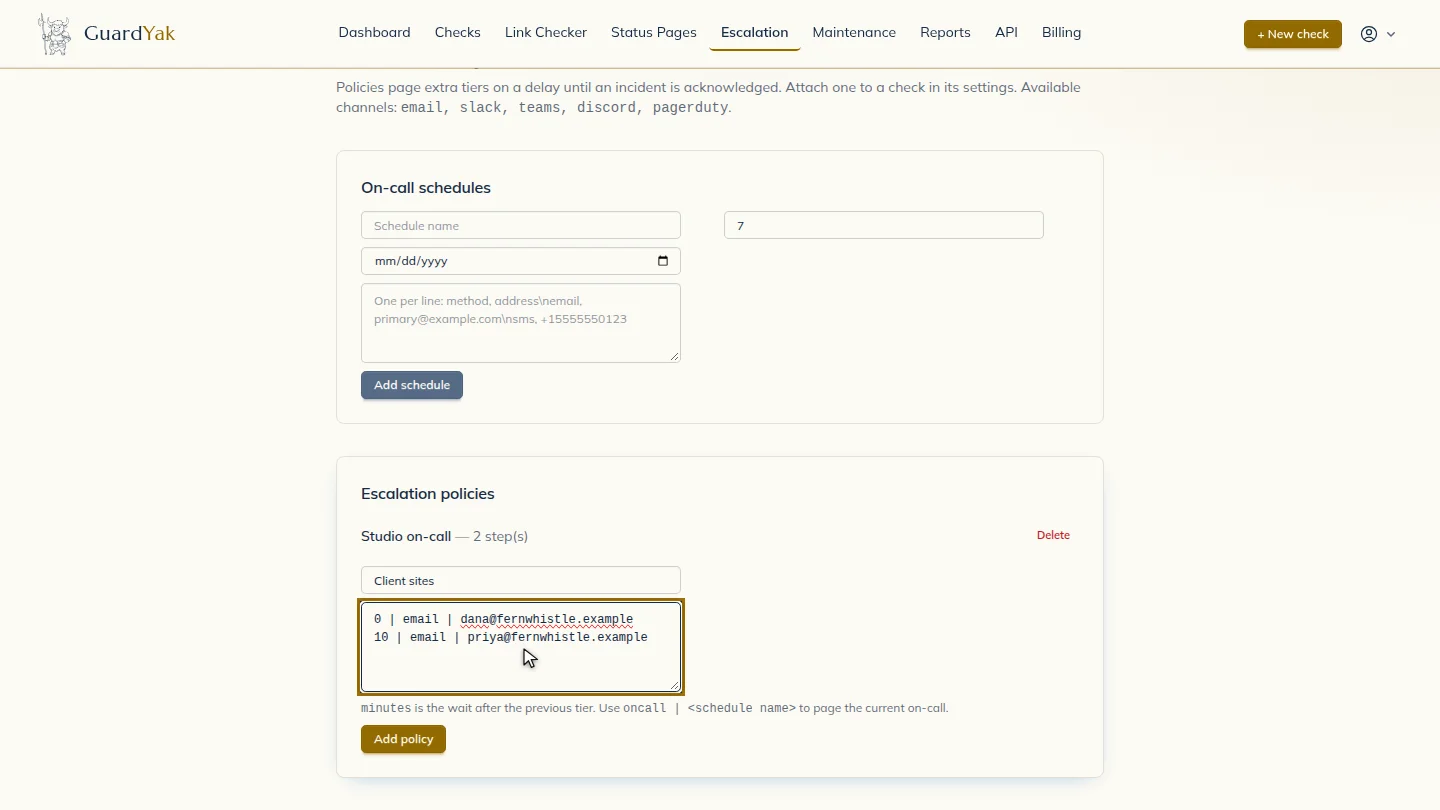
Add one line per step: minutes to wait, the method, then the address. Here Dana is emailed straight away, and Priya after ten minutes.
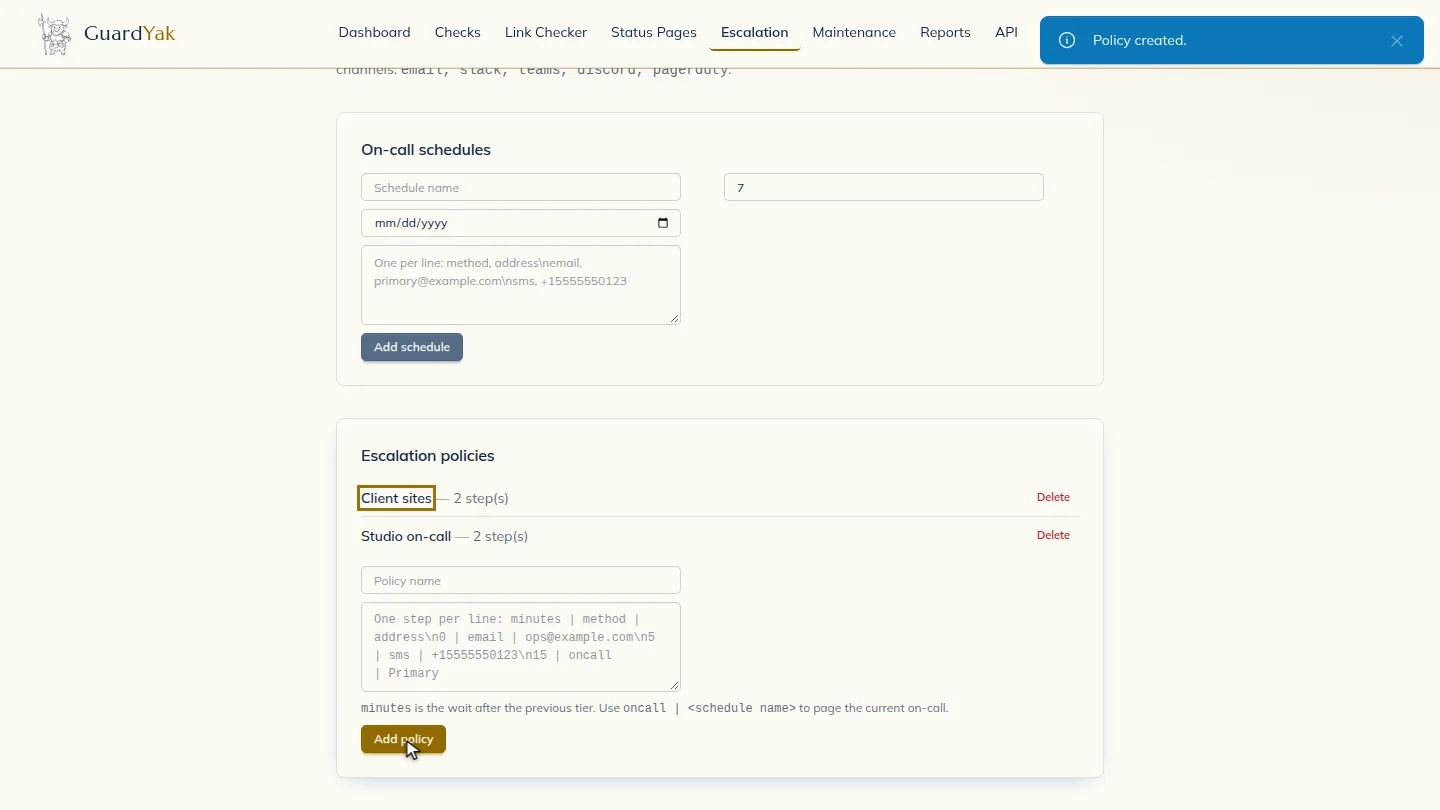
Add the policy. You can now choose it in any check's settings, and GuardYak stops escalating as soon as someone acknowledges the incident.
Steps
Name the policy ▶ 0:07
Under Escalation policies, enter a Policy name.
Add the steps ▶ 0:11
In the steps box, add one line per step in the form minutes | method | address.
Save it ▶ 0:21
Select Add policy. Choose it under Escalation policy (optional) when you create or edit a check.
Next steps
Updated 2026-10-26
on-call escalation alert routing pager